Step 1. Create a bootable password reset CD/DVD or USB flash drive on an accessible computer
Step 2. Reset lost password on your locked computer with the burned CD/DVD or USB drive
1. Download the demo edition or purchase the full edition of Windows Password Reset Professional online, then install it.
Note: Please download and install the program on an accessible computer but not on the locked computer.
2. Run the program and insert a USB drive or CD\DVD, and then click Start.
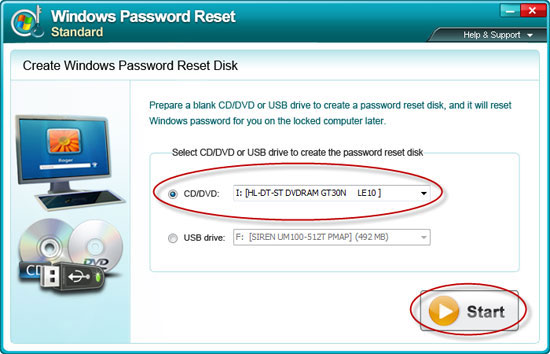
3. Click Yes to continue the burning process.
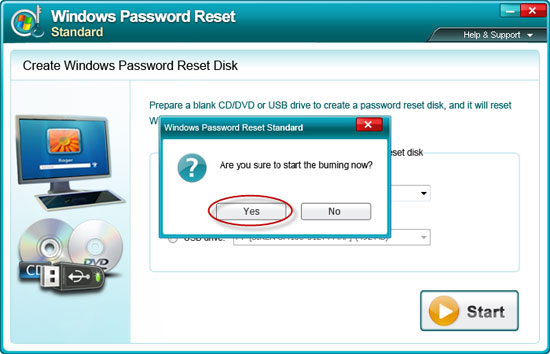
4. Now, your USB drive has been burned successfully.
Insert the burned USB drive in your locked computer. Make sure the locked computer is booted from the USB drive. If not, please set BIOS to boot from CD/DVD or USB drive first.
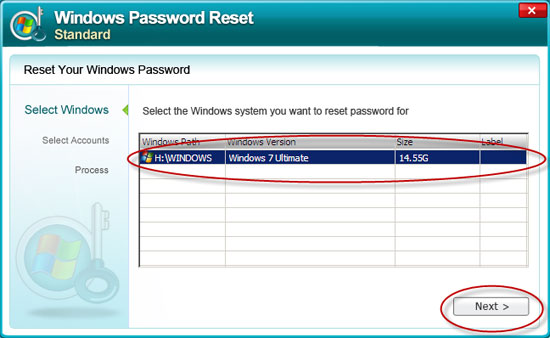
1. Run the program, select the target Windows system on the start page, click Next.
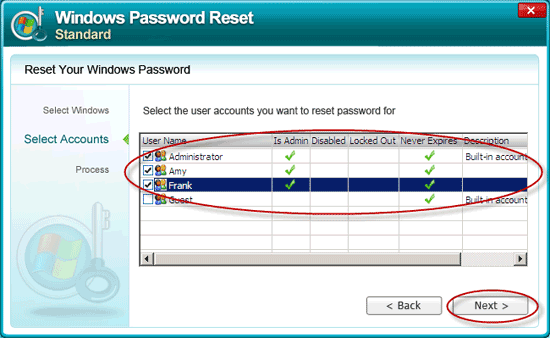
2. All the user names will be listed on the page, select the user accounts you want to reset passwords for, click Next.
3. After successfully reset the passwords, take out the password reset CD/DVD or USB drive, click Reboot, and then click Yes to restart the computer.

Now you can log on your system without any password.
This software features a more complete compared with the same software at home and abroad! It is affordable and easy to use, yet sophisticated and powerful.Simply superb!!"
- George Jackson
Anmosoft Windows Password Reset Standstard is a very impressive software, indeed. Not only do you folks have a great product, you have great support.
- Julie White

Copyright © 2014 Anmosoft Studio Windows Password Reset