Summary: 3 methods to reset Windows 7 admin password.
If you unfortunately forget Windows 7 admin password, and after surfing all over the internet to look for ways to reset Windows 7 password, you still have no idea about how to start.
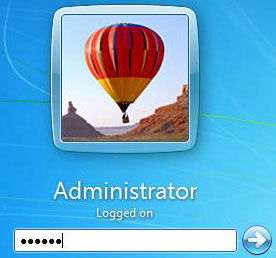 Don't worry. The following method is the easiest way to help you to reset Windows 7 admin password.
Precondition: The Account you forgot Windows password isn't the only Administrator Account.
You are lucky if what you forgot is only a guest account or not the only Administrator Account. If someone who has an Administrator account on your computer, please ask a favor of her or him to follow these three steps to make you re-login with your own Account.
Step 1. Login the available Windows 7 Administrator Account.
Step 2. Click Start -> Control Panel -> Add or remove user accounts
Step 3. Choose account that you want to reset Windows password for.
Step 4. Click Change the password or Remove the password. And then you can change or remove the lost or forgotten password
You could login your Windows 7 with the password you changed or with no password now!
Precondition: You have made a Windows 7 password reset disk (USB flash drive) in advance.
Windows 7 supports creating Windows password reset disk with USB flash drive in case that the user lost Windows 7 login password. It is advisable to use this method if you have made a password reset disk in advance. You can easily reset Windows 7 Admin password in several seconds. The biggest disadvantage of this method is if you didn't make the disk in advance, this method would be helpless. Just follow these 5 steps below to reset Windows 7 password.
Step 1. When you enter a wrong password on the Windows 7 login screen, a hint will appear: The user name or password is incorrect. Click OK and you are back to the login screen. Insert the created Windows password reset disk to PC and click Reset password...
Step 2. Click Next.
Step 3. Choose your disk and click Next.
Step 4. Type in a new password and click Next (if you don't enter anything).
Step 5. Click Finish and your lost password should be reset.
Facing dozens of Windows password recovery tools, free or shareware, you might be confused which is the best. Well, the one can remove Windows 7 password for you in the shortest time will be the best. Most of them require making a password reset CD and the time that you cost depends on the size of ISO files. Taking Windows Password Reset Standard as an example, it is only 1.97 Mb. The most amazing of Windows Password Reset Standard is it could help you to remove Windows password instantly. Don't need to wait. Please follow the following 3 simple steps to reset your Windows 7 Administrator password:
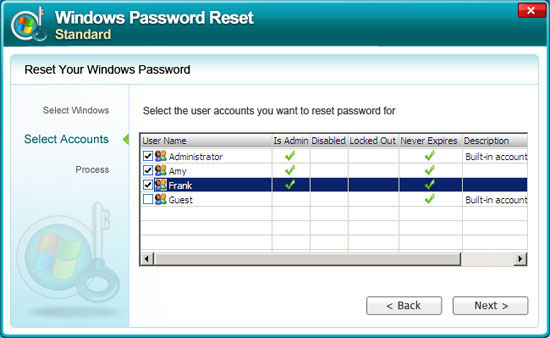
Step 1. Download Windows Password Reset.
Step 2. Burn the ISO file to a blank CD/DVD with the embedded burner.
Step 3. Make the PC boot up from CD/DVD.
Step 4. Reset your Windows 7 password with the disk.
Everyone could reset password for Windows easily with Windows Password Reset Standard in 5 minutes. There is no necessity for us to deal with complicated problems in the entire process. It will be the perfect way for computer newbie to reset Windows 7 Admin password.
Copyright © 2014 Anmosoft Studio Windows Password Reset


 Jan 11, 2013/ Posted by