Will you still keep calm when you forget Windows password? The computer you used everyday is very important, and if you forget the password, it will definitely have big influence on your works. Please find a good solution as soon as possible to make your computer work normally!
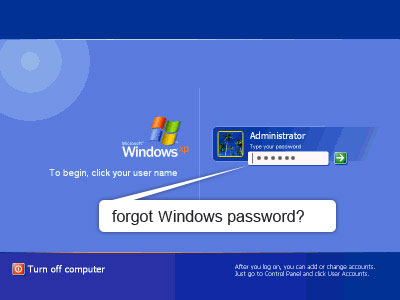
When computer users find their Windows password forgotten, they have many methods to reset the password. Let me introduce for you the first method. It is pretty easy to use to get Windows password reset.
We know there is a default admin account in Windows system after it is installed. In general, there is no password attached to the default admin account, and it has the highest right to manage other user accounts, including changing password for them. If your user account is locked, you can use admin account to reset forgotten password like following steps:
1. Log in Windows with the admin account and enter Control Panel.
2. Choose the account you want to reset password for, then change or remove its password.
3. Restart the computer, and then log in Windows with the new password or no password.
But if the admin account is locked, you can use a Windows password recovery tool named Anmosoft Windows Password Reset to reset Windows password. Actually, passwords for any user accounts can be reset by it, and for any Windows versions. Compared to using admin account, this software is more convenient and more powerful. The remarkable thing is that it can quickly reset password in three steps.
1. Download and run the software on an accessible computer prepared in advance.
2. Put a blank CD/DVD or a USB drive (prepared in advance) into the computer to make a password reset disk.
3. Insert the disk into the locked computer and make a few mouse-clicking on the pop-up interface, then you can make your forgotten password reset.
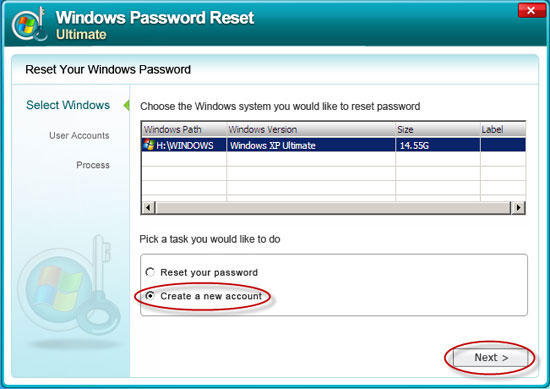
Anmosoft Windows Password Reset is also can be used for Windows 7 password recovery. In the period when Windows 7 is widely used, this feature is definitely an advantage.
Copyright © 2014 Anmosoft Studio Windows Password Reset


 Aug 19, 2010/ Posted by